



SnapToYour light & shadow atelier
Selected work
After the Tide · AI-created photography
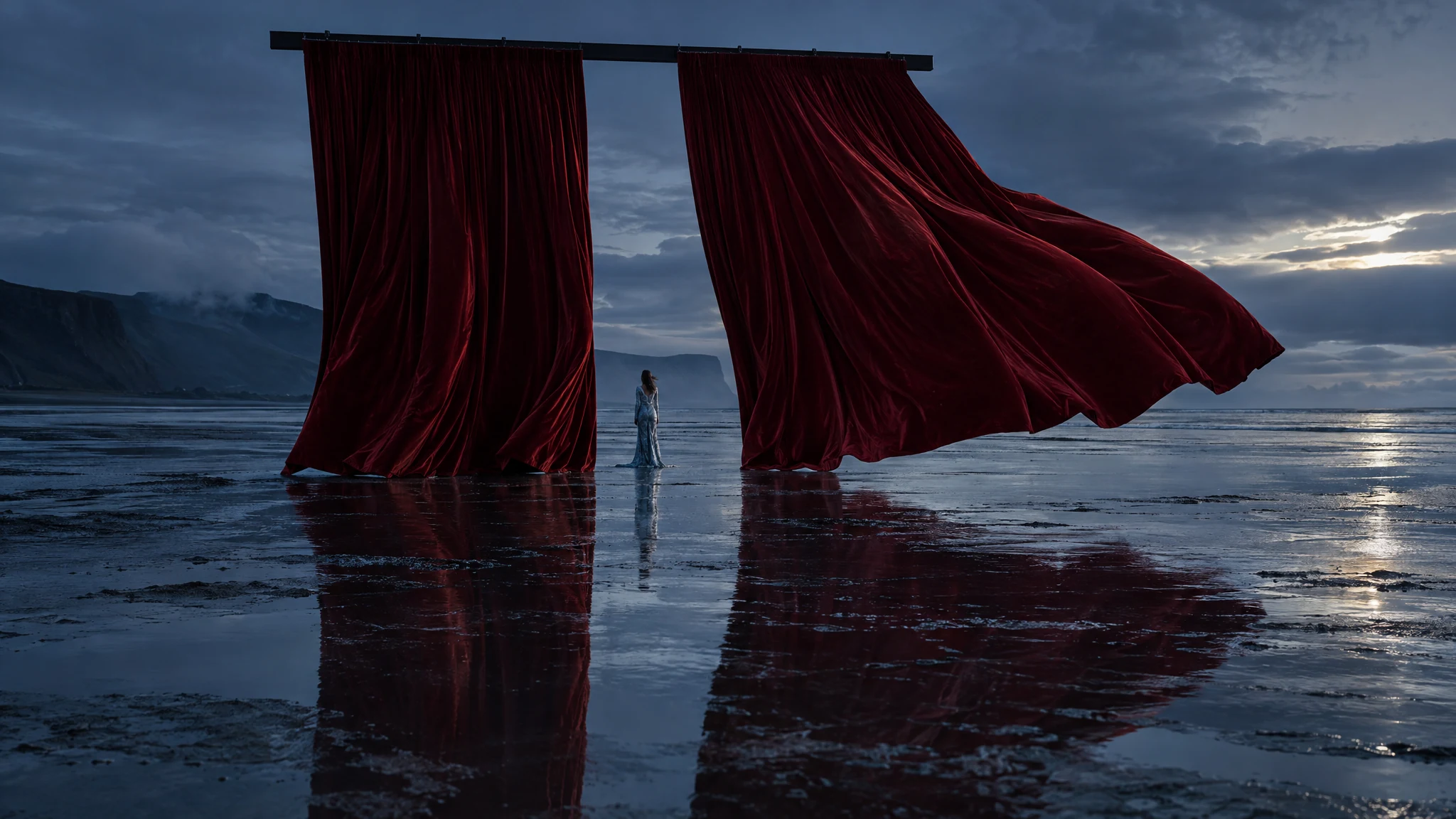
Background
Open-Air Premiere
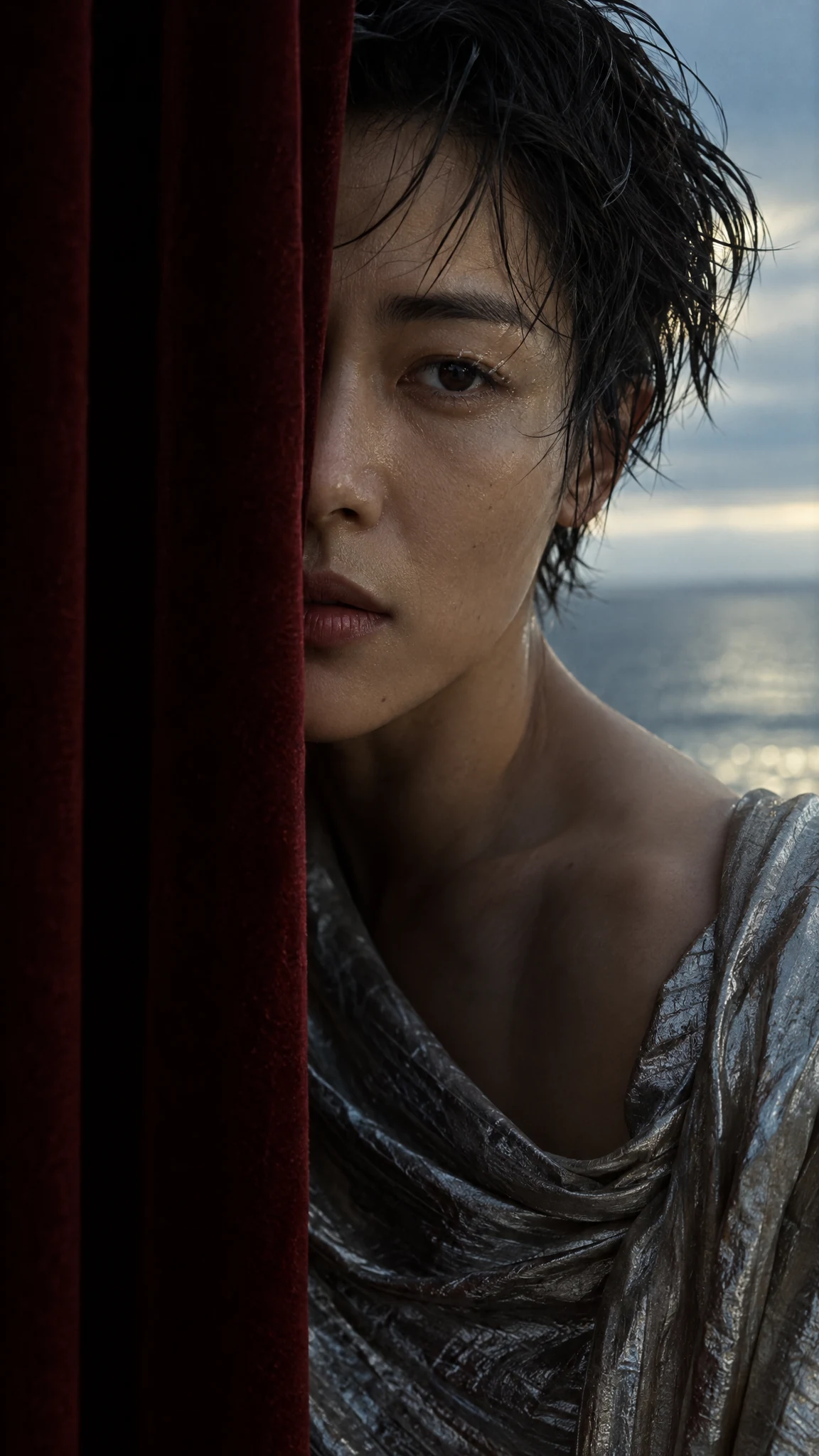
Portrait
In the Wings
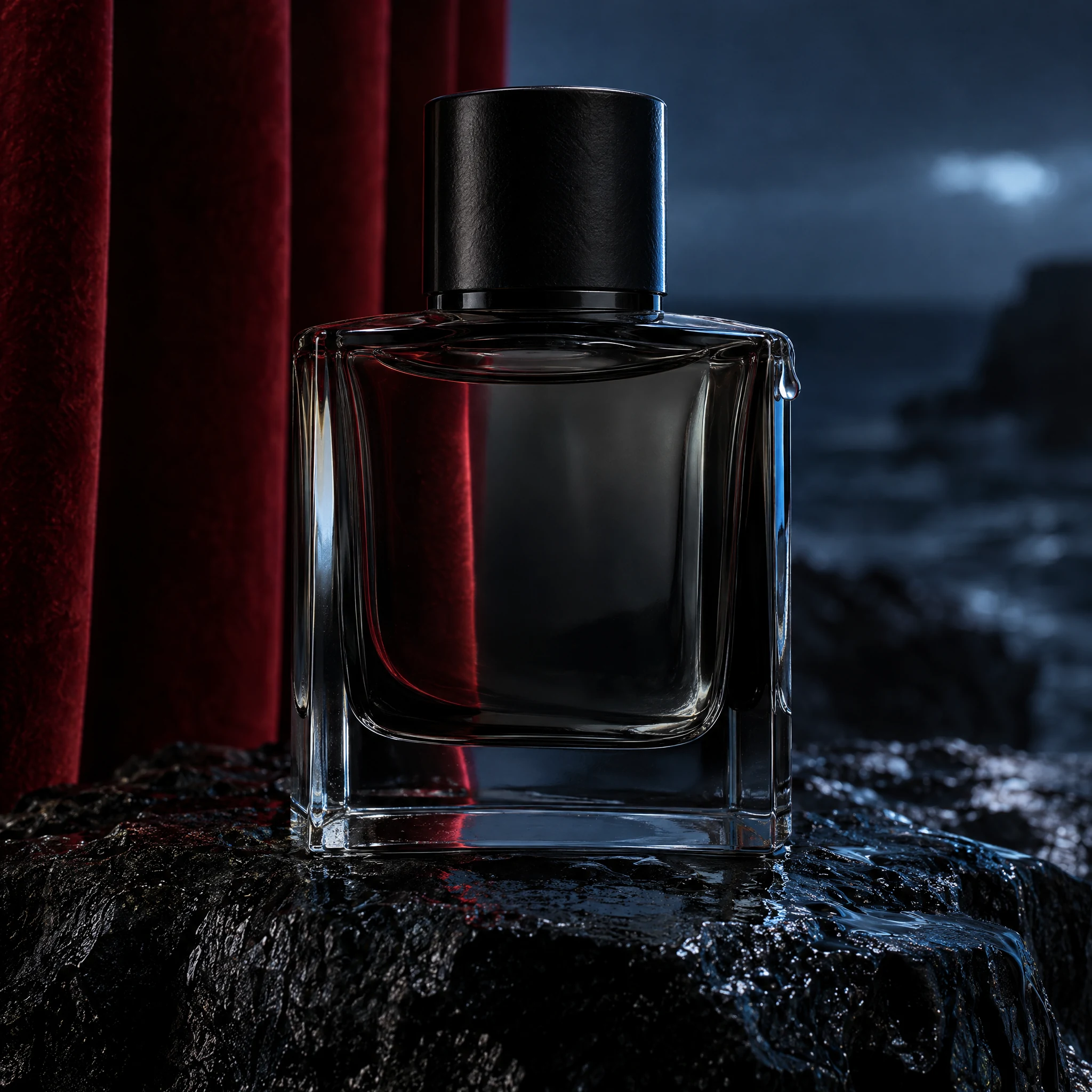
Product
The Last Drop
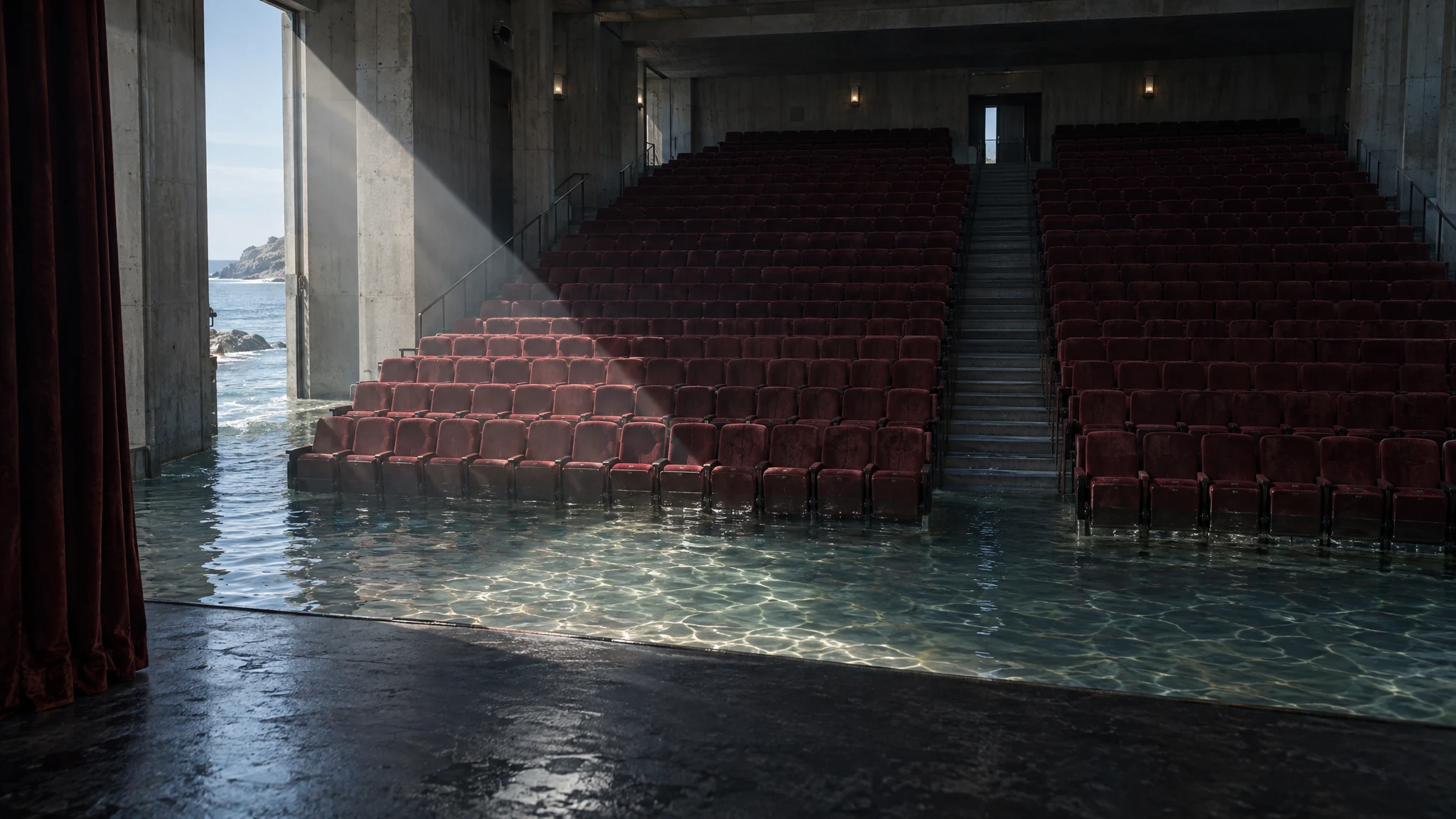
Interior
Empty Seats
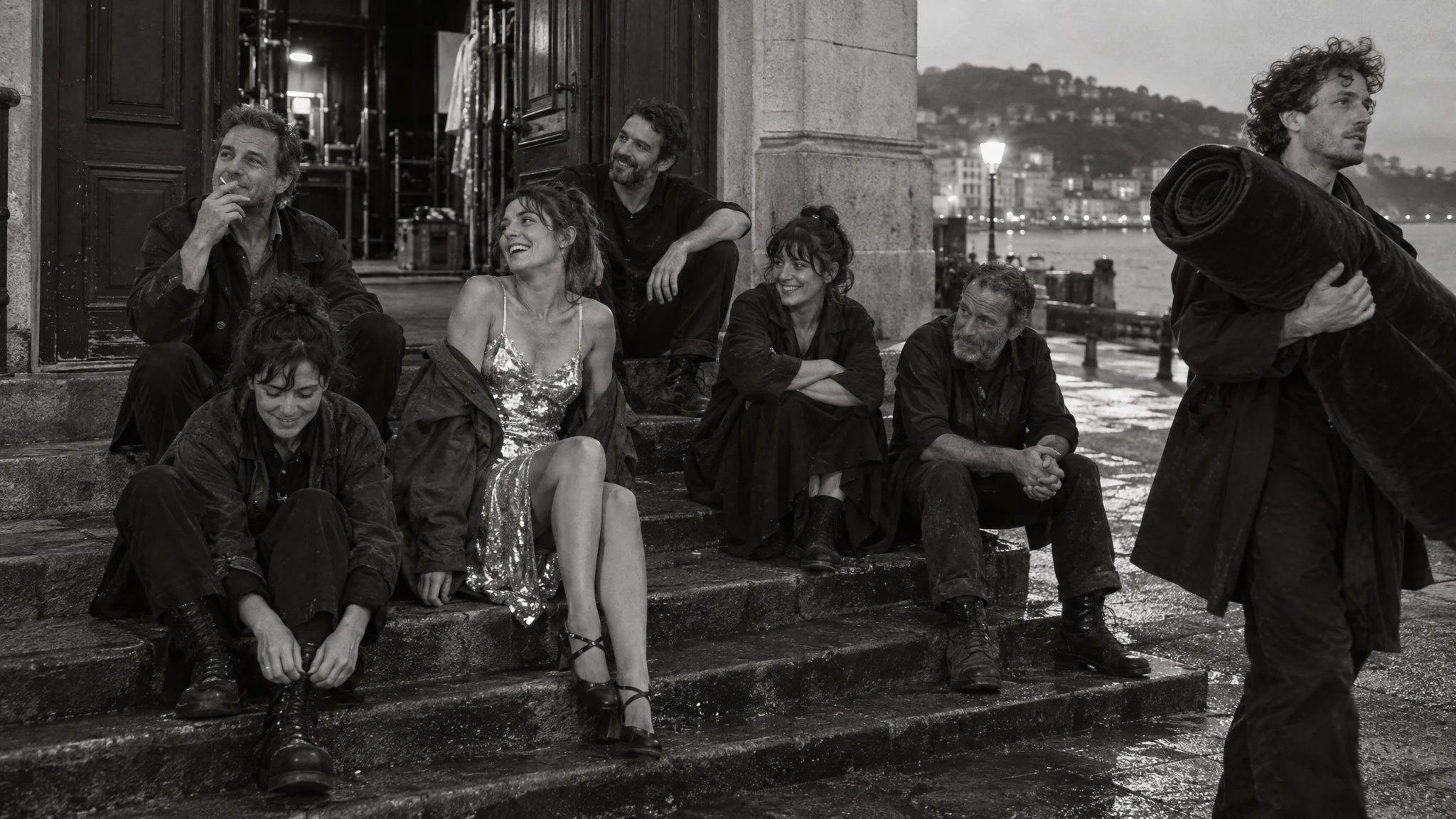
Restoration
After the Show
How it works
- Start with a photo. A phone snapshot, a product, a room, or a moment from another time.
- Find your direction. Choose a scene and a style. Adjust the options to suit what you have in mind.
- Make it yours. Generate, compare with the original, then download your result.
Common questions
What can I create with SnapTo?
Explore portraits, lifestyle backgrounds, product photos, interior styles, and photo tools including restoration. Each workspace shows its own available options.
Do I need to write prompts?
Start by uploading a photograph and choosing a scene, style, and options. SnapTo organizes the image workflow for you.
How were the photographs made?
The cover and selected works are AI-created photography featuring fictional adults. Use the links beside the photographs to create with your own image.
What should I expect from a result?
Results depend on your source photo and selected options. Review the result before using it; image processing can alter details. The workspace confirms any generation cost before you continue.